

Key Takeaways:
- A tenant groups your organizations. See Tenants.
- Tenant users can access more than one organization and switch between them without a new passkey prompt.
- The tenant Team manages tenant users; each organization’s Users page manages that organization’s own org users, end users, and service accounts.
Switch between organizations
Tenant users can move between the organizations they have access to:- Open the organization switcher at the top left, or Organizations in the tenant view.
- Select the organization to sign in to it.
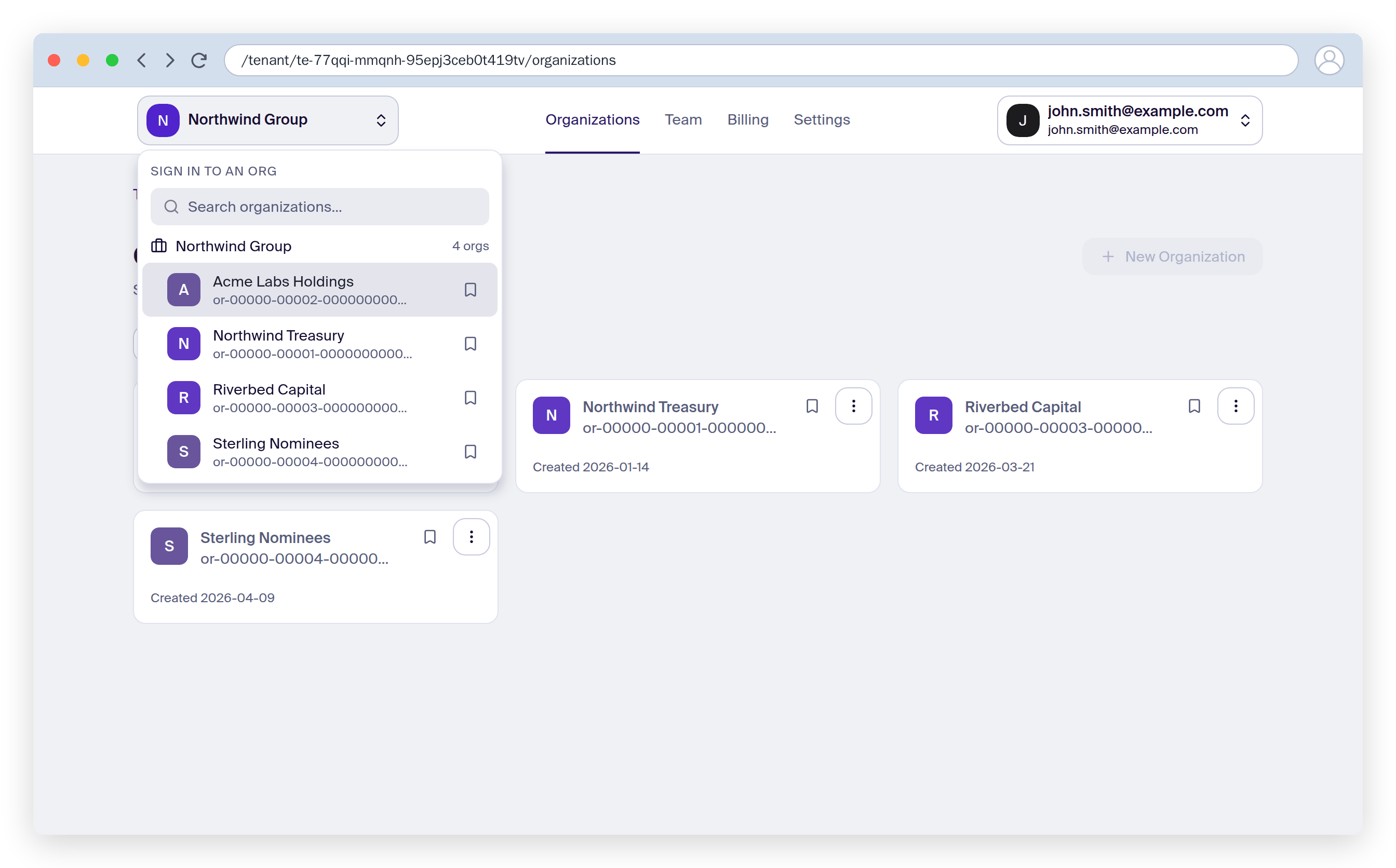
View your organizations
From the tenant view, open Organizations to see every organization in your tenant and jump into any of them.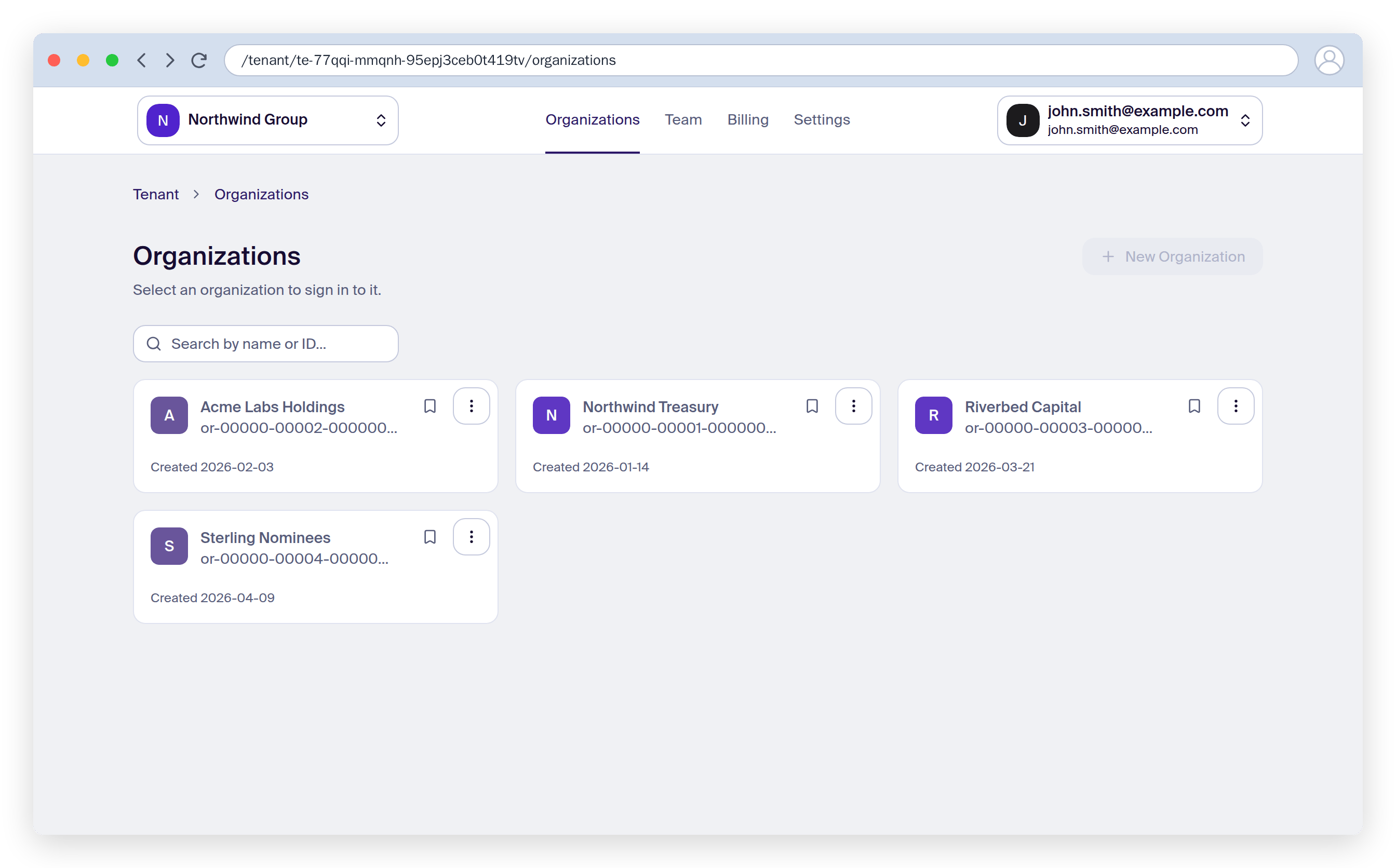
Create an organization
- From the tenant view, open Organizations and click New Organization.
- Enter a Name and pick the Key store that holds the organization’s keys.
- Click Create.
Suspend, archive, or restore an organization
From Organizations, open an organization’s action menu (⋮):- Suspend: everyone loses access to the organization and its API integrations stop working, until you restore it.
- Archive: everyone loses access, and its wallets, keys, and policies stop being usable. The dashboard asks you to confirm before archiving. Archived organizations move to the Archived view.
- Restore: brings a suspended or archived organization back to active.
Manage tenant users (Team)
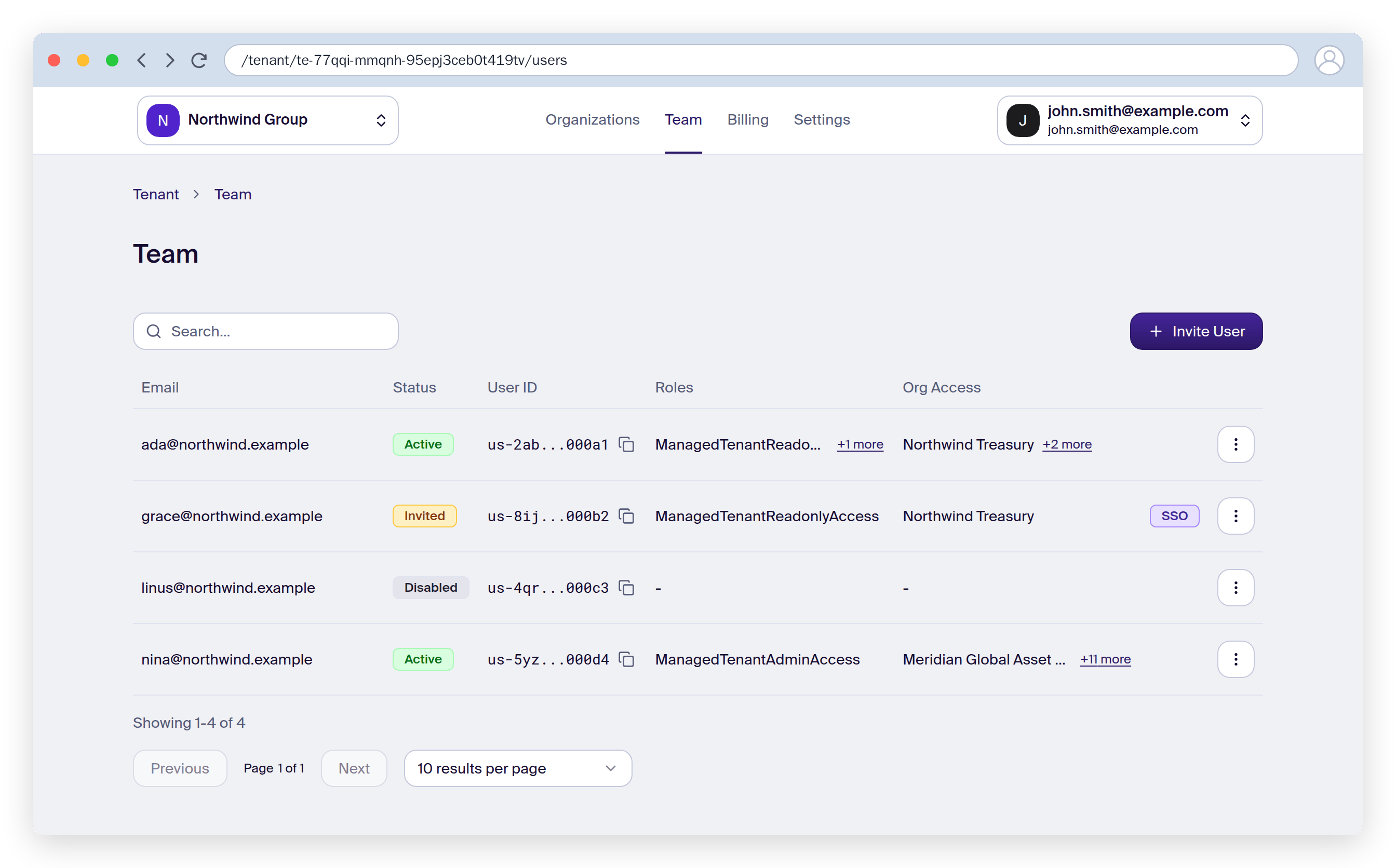
The tenant Team lists your tenant users, who belong to the tenant rather than to a single organization. From here you can:- Invite a new tenant user.
- See which organizations each tenant user can reach, under Org Access.
- Remove a tenant user from every organization. To remove them from one organization only, delete them from that organization’s Users page. Either removal is refused if it would leave the tenant or an organization without an admin, or a policy without enough approvers.
Org users, end users, and service accounts are never tenant users. They belong to a single organization and are managed from that organization’s Users page. See Tenants for the full breakdown of who lives where.
Grant an existing tenant user access to an organization
To let a tenant user into another organization:- Switch to the target organization.
- Go to Users and click Invite User.
- Choose Tenant User and enter the person’s email address.
- Click Invite.