

Only outgoing transactions can be blocked. Incoming transactions are on-chain and cannot be prevented by DFNS.
This pattern applies to wallets only. Vaults have no policy activity to block — their underlying wallets are sealed and funds move only through the vault transfer API. To stop outflows from a vault, revoke the
Vaults:Transfers:Create permission from the acting user or service account.How it works
- Create a policy that blocks all transactions from wallets tagged
frozen - To freeze a wallet, add the
frozentag to it - To unfreeze, remove the tag
Set up the freeze policy
Create a policy with theAlwaysTrigger rule and Block action, filtered to the frozen tag. This policy only needs to be created once. Any wallet tagged frozen will have all outgoing transactions blocked.
From the dashboard
1
Go to Policies
Navigate to Policies and click Create Policy.
2
Name the policy
Enter a name like
Freeze Tagged Wallets and click Continue.3
Select the activity
Select Wallet usage (transfer, transaction, signature) and click Continue.
4
Add a wallet tag filter
Under Any Tags, click Add Tags and add the
frozen tag. Click Continue.5
Select the rule
Select Always trigger.
6
Select the action
Select Block.
7
Save the policy
Review the summary and click Save.
With APIs
Freeze a wallet
Add thefrozen tag to the wallet you want to freeze.
From the dashboard
1
Open the wallet
Go to Wallets and click the wallet you want to freeze.
2
Edit the wallet
Click Edit to open the wallet settings.
3
Add the frozen tag
In the Tags field, type 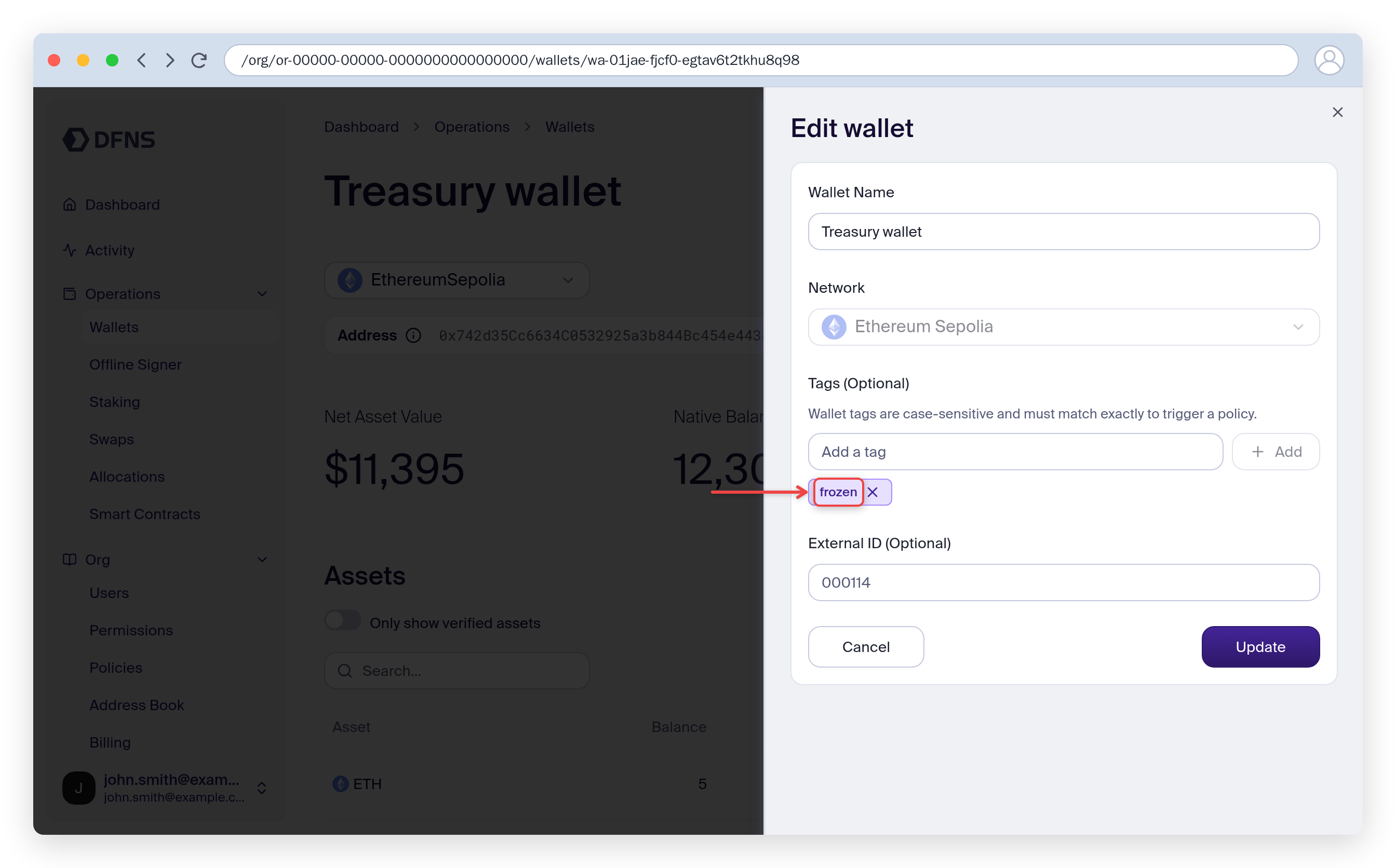
frozen and click Add. Then click Update to save.With APIs
Unfreeze a wallet
Remove thefrozen tag to allow the wallet to transact again.
From the dashboard
1
Open the wallet
Go to Wallets and click the frozen wallet.
2
Edit the wallet
Click Edit to open the wallet settings.
3
Remove the frozen tag
Click the x next to the
frozen tag to remove it. Then click Update to save.