> ## Documentation Index
> Fetch the complete documentation index at: https://docs.dfns.co/llms.txt
> Use this file to discover all available pages before exploring further.
# Interact with smart contracts
> Read from and write to smart contracts using the DFNS dashboard or API, including ABI decoding, contract reads, and policy-controlled writes.
export const Youtube = props => {
return ;
};
DFNS supports direct smart contract interaction on EVM-compatible networks. You can call read-only functions (like checking a balance) and execute state-mutating functions (like minting tokens or approving spending), all with DFNS wallets handling key management and signing.
## From the dashboard
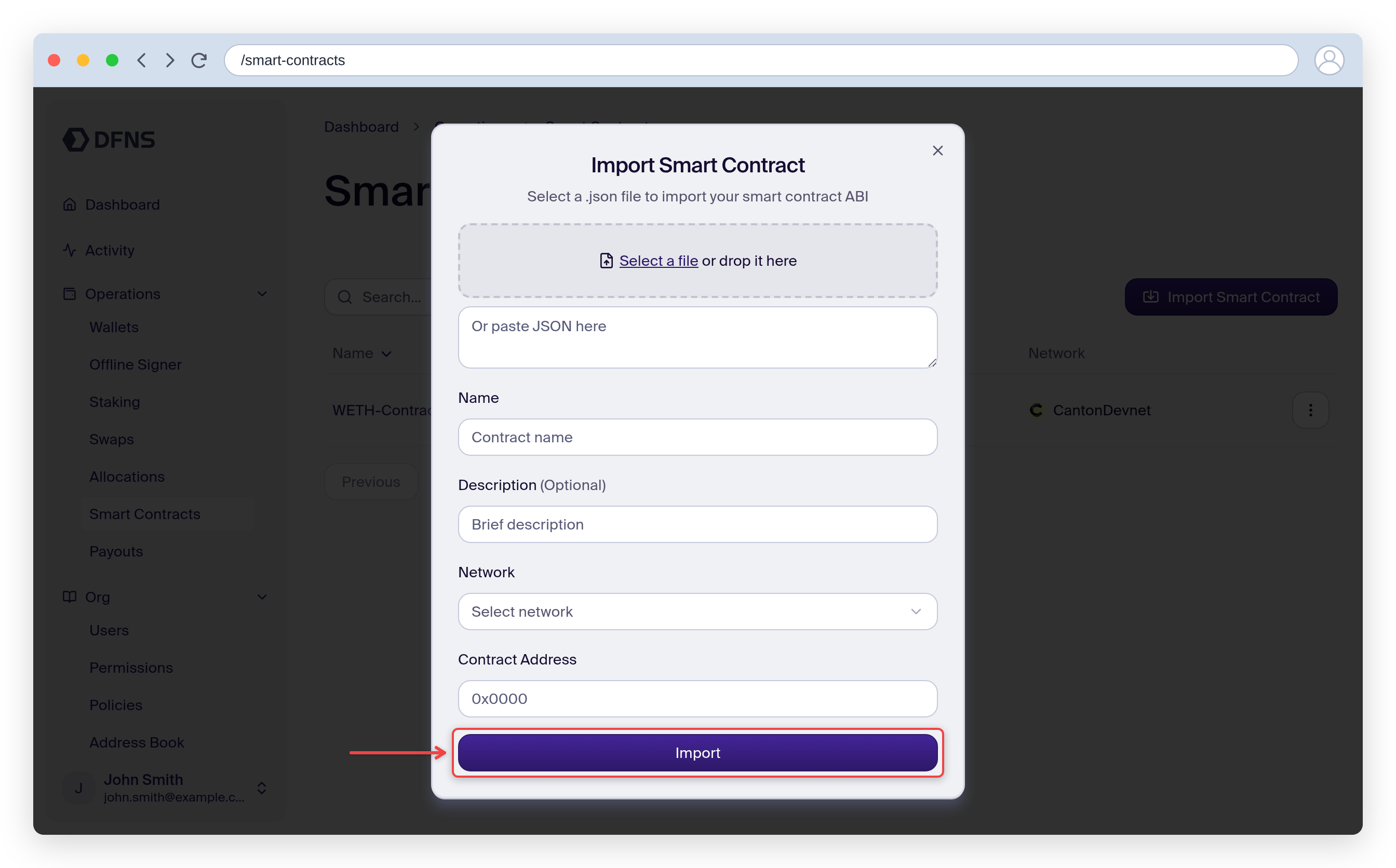
The **Bring Your Own ABI** feature lets you import a contract's ABI and interact with it directly from the dashboard. No code required.
### Import a contract
Navigate to the **Smart Contracts** section in the dashboard sidebar.
Click **Import Smart Contract** and fill in:
| Field | Description |
| -------------------- | --------------------------------------------------------------------- |
| **Contract name** | A label for this contract (lowercase, alphanumeric, hyphens) |
| **Contract address** | The on-chain address of the deployed contract |
| **Network** | The EVM network the contract is deployed on |
| **Description** | Optional description |
| **ABI** | The contract's ABI in JSON format, upload a file or paste it directly |
Click **Import** to save.
You can find a contract's ABI in the build artifacts of your Solidity project, or on a block explorer under the **Contract** tab for verified contracts.
Importing and deleting contracts is subject to your organization's [policies](/core-concepts/policies). If a policy applies, the action will require approval before it takes effect.
### Read from a contract
Open your imported contract and go to the **Read** tab. Select a function, fill in any required inputs, and click **Query**. The result displays immediately. No wallet or gas needed.
### Write to a contract
Go to the **Write** tab. Select a function, fill in the inputs, and connect a wallet on the same network as the contract. Review the confirmation dialog carefully, then submit. The transaction is signed by your DFNS wallet, broadcast to the network, and its status is tracked in the dashboard.
Write transactions go through your wallet's [policies](/core-concepts/policies). If a policy applies, the transaction will require approval before it is broadcast.
## From the API
### Read-only calls
Use the [Call Function](/api-reference/networks/call-function) endpoint to query `view` or `pure` functions. No wallet or signing is required.
```json theme={null}
POST /networks/Ethereum/call-function
{
"contract": "0xa0b86991c6218b36c1d19d4a2e9eb0ce3606eb48",
"abi": {
"type": "function",
"name": "balanceOf",
"stateMutability": "view",
"inputs": [{ "name": "account", "type": "address" }],
"outputs": [{ "name": "", "type": "uint256" }]
},
"calldata": {
"account": "0xd964d741998edc275f3800eed113378a391951d9"
}
}
```
A `could not decode result data (value="0x")` error means the call returned empty data: the `contract` address is not a deployed contract on that network. This usually happens when the address exists on a different network (for example, a mainnet contract called on a testnet) or is a regular wallet address. Note that the ABI input/output `name` fields are caller-defined labels and do not need to match the deployed contract.
### State-mutating calls
Use the [Sign & Broadcast Transaction](/api-reference/wallets/sign-and-broadcast-transaction) endpoint with `kind: FunctionCall`. This signs the transaction with the specified wallet and broadcasts it to the network.
```json theme={null}
POST /wallets/{walletId}/transactions
{
"kind": "FunctionCall",
"call": {
"contract": "0xa0b86991c6218b36c1d19d4a2e9eb0ce3606eb48",
"abi": {
"type": "function",
"name": "transfer",
"stateMutability": "nonpayable",
"inputs": [
{ "name": "to", "type": "address" },
{ "name": "value", "type": "uint256" }
],
"outputs": [{ "name": "", "type": "bool" }]
},
"calldata": {
"to": "0xd964d741998edc275f3800eed113378a391951d9",
"value": "1000000"
}
}
}
```
The `abi` field takes a single function definition (not the entire contract ABI). The `calldata` field maps input names to values.
## Related
Understand the different transaction APIs
EVM-specific transaction details
TypeScript SDK for contract interaction
Sponsor gas fees for smart contract calls

 ### Write to a contract
Go to the **Write** tab. Select a function, fill in the inputs, and connect a wallet on the same network as the contract. Review the confirmation dialog carefully, then submit. The transaction is signed by your DFNS wallet, broadcast to the network, and its status is tracked in the dashboard.
### Write to a contract
Go to the **Write** tab. Select a function, fill in the inputs, and connect a wallet on the same network as the contract. Review the confirmation dialog carefully, then submit. The transaction is signed by your DFNS wallet, broadcast to the network, and its status is tracked in the dashboard.
