> ## Documentation Index
> Fetch the complete documentation index at: https://docs.dfns.co/llms.txt
> Use this file to discover all available pages before exploring further.
# Register a new passkey
> Register passkey credentials so a user can log in to their DFNS organization across multiple devices, with cross-device sync and rotation.
Passkeys provide a secure and convenient way to sign in to your DFNS account and approve actions without needing to enter a password.
**What is a Passkey?**
A passkey is a digital credential, like a key to a house, that is stored on your device (computer, phone, or hardware security key). It replaces traditional passwords with a more secure, phishing-resistant authentication method using biometrics (like Face ID or a fingerprint) or a device PIN.
Read more about passkeys on the dedicated page: [why-dfns-uses-passkeys](/core-concepts/passkeys)
If you lose access to your only credential and have no recovery key, you are locked out of your account until an administrator re-enrolls you. Register at least two credentials on separate devices (for example, your primary computer and a YubiKey) to ensure you always have a way in.
### Prerequisites
Before you begin, please ensure you have the following:
* An active DFNS account with permissions to manage your own security settings,
* Access to the DFNS Dashboard using an existing credential,
* The physical device (computer, Yubikey) on which you want to create and store the new passkey.
### Step-by-step guide
Follow these steps to register a new passkey to your DFNS account.
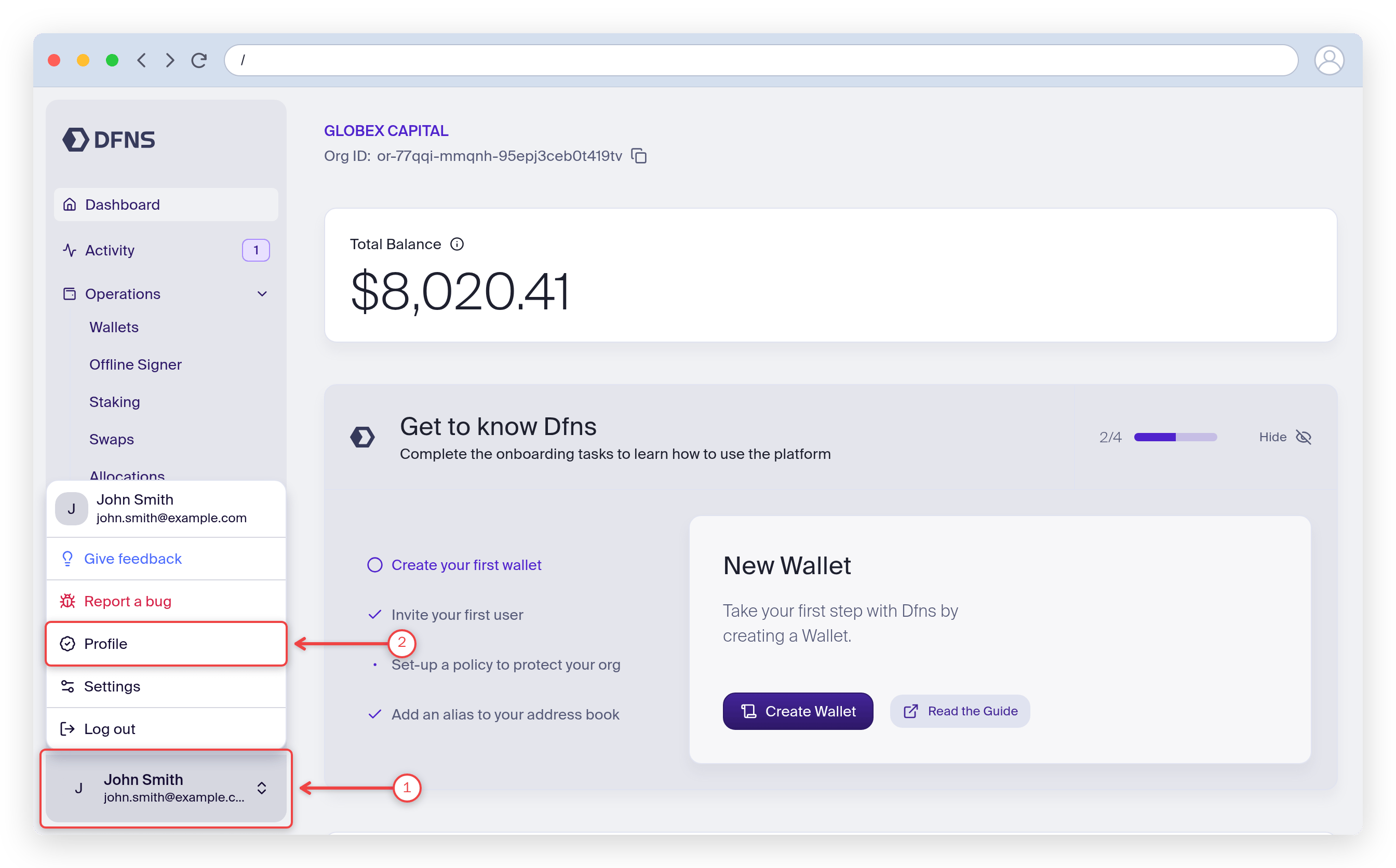
Log in to the DFNS Dashboard, click your account at the bottom-left (1), then click **Profile** (2). Direct link: [https://app.dfns.io/profile](https://app.dfns.io/profile)
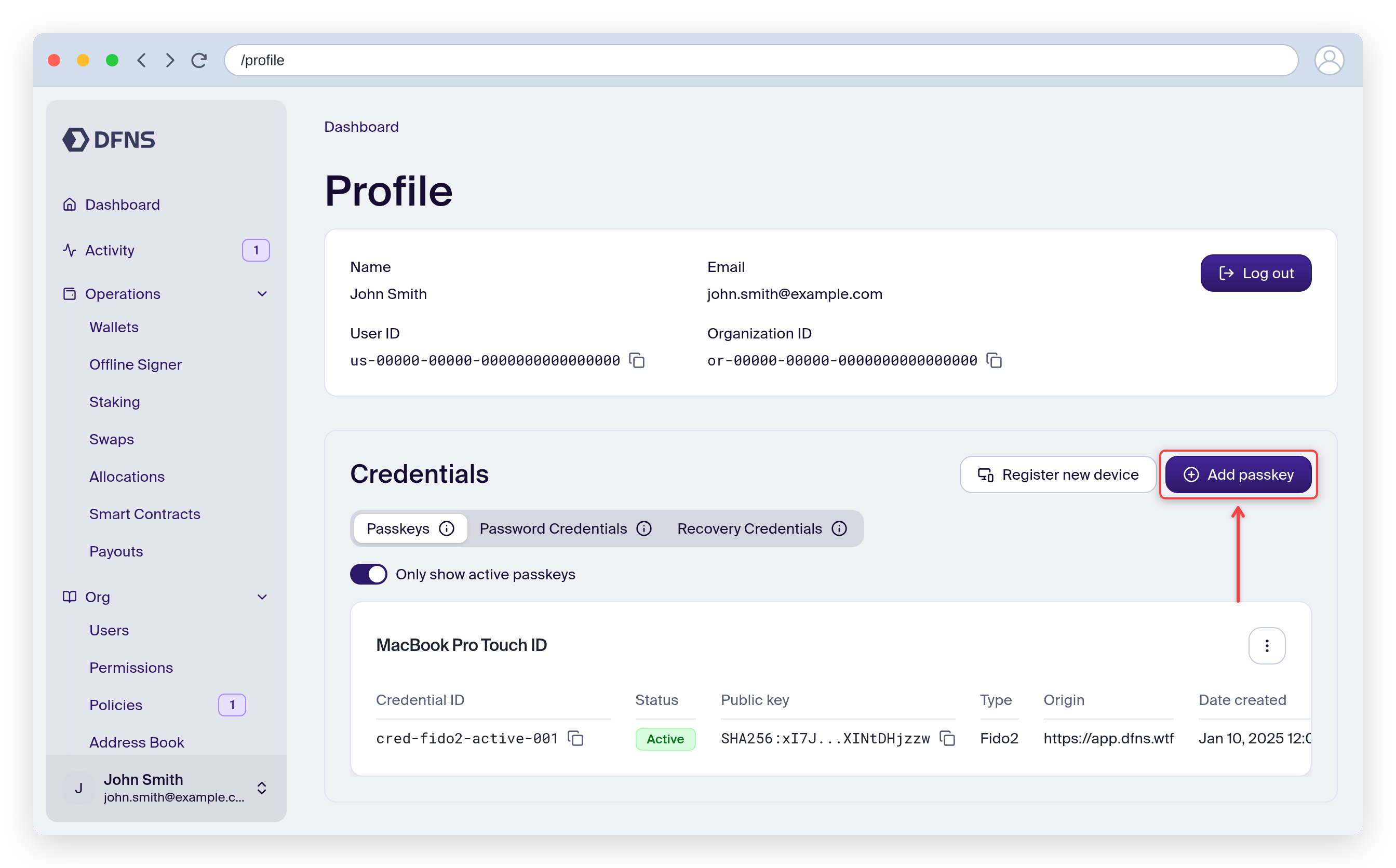
 You can see here the list of existing credentials, notice the checkbox to activate/deactivate each one of them. This can be useful in case you lost a device for example.
 Click the "**Create Credential**" button and give a name to the new credential.
**Pro Tip:** Use clear and specific names to easily distinguish your passkeys.
For example: `MacBook Pro (Work)`, `Backup Yubikey`, or `Google Titan Key`...
Click the "**Create Credential**" button and give a name to the new credential.
**Pro Tip:** Use clear and specific names to easily distinguish your passkeys.
For example: `MacBook Pro (Work)`, `Backup Yubikey`, or `Google Titan Key`...
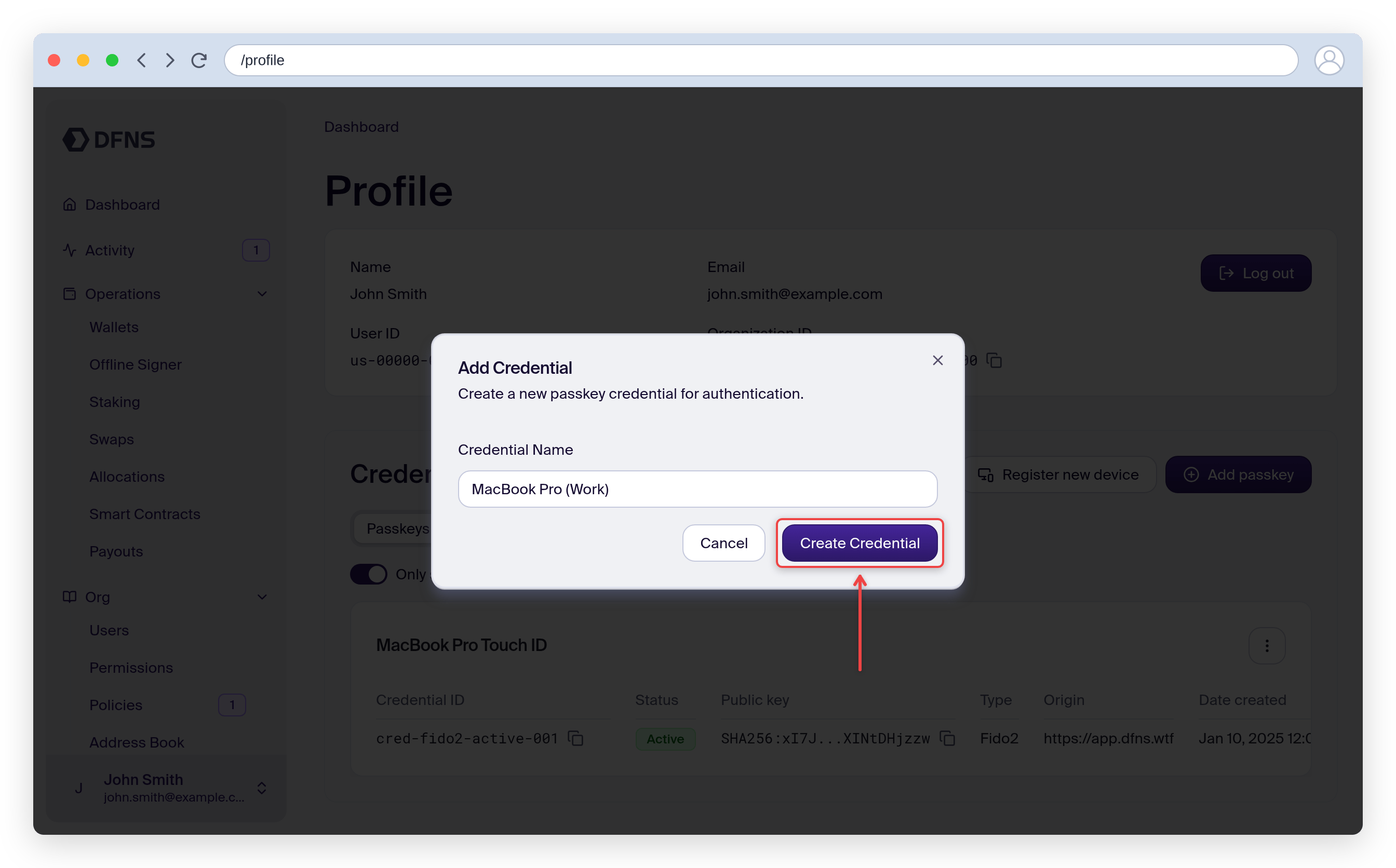 Click the "**Create Credential**" button.
Your browser (or your password manager) will now take over and prompt you to create a new access key for `dfns.io`. This step will vary depending on your operating system and browser (e.g., Windows Hello, Apple Touch ID/Face ID, Android fingerprint).
Use your new device's security method to confirm. This could be:
* **Biometrics:** Fingerprint scan, Face ID, etc.
* **PIN:** Your device's local PIN code.
* **Hardware Key:** Tapping a connected YubiKey or other FIDO2-compliant security key.
Follow the browser prompts until your key is created.
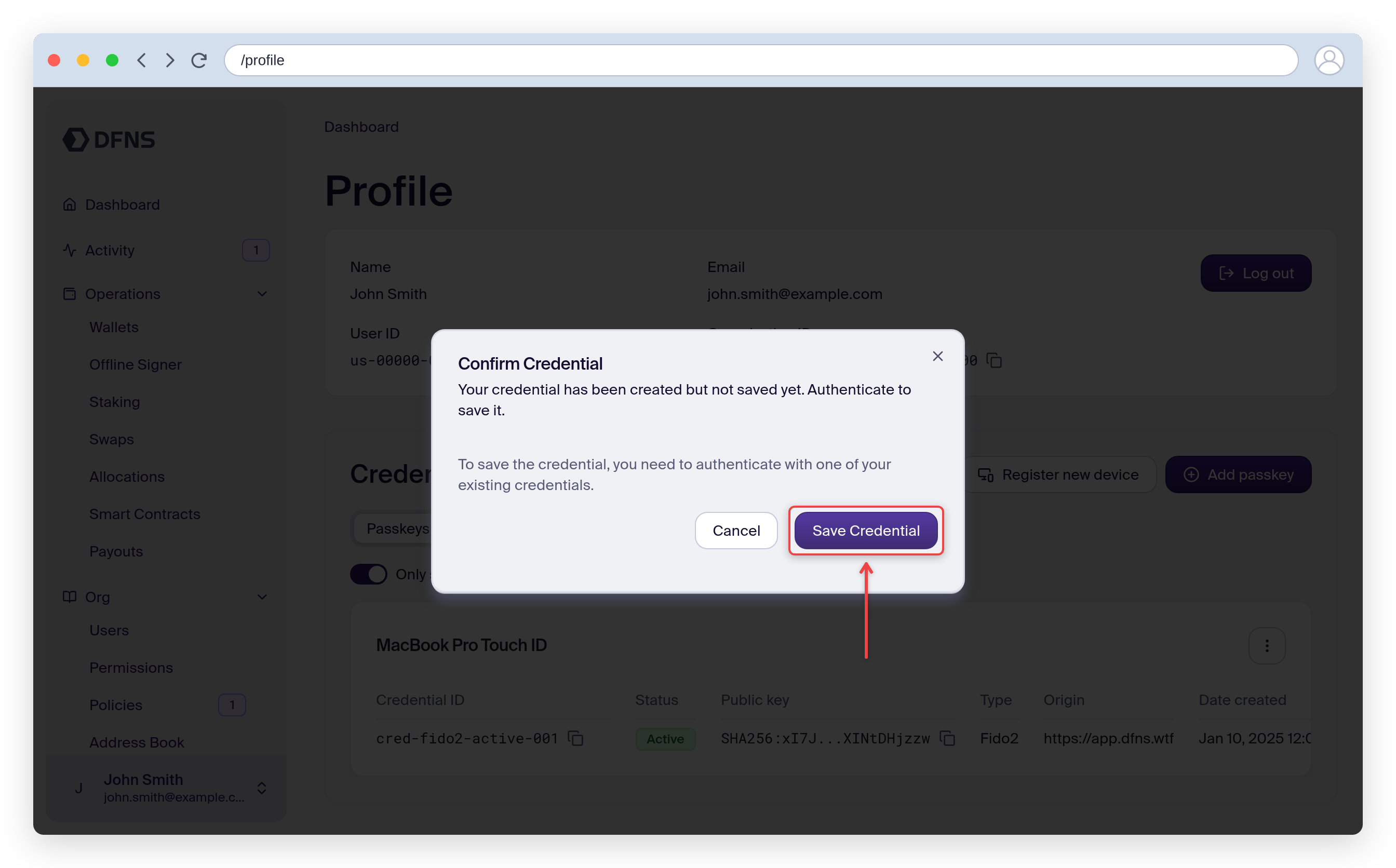
Your new passkey has submitted the credential, you just have to save it now.
Click "**Save Credential**" and 🔑 sign the action with your existing passkey.
Click the "**Create Credential**" button.
Your browser (or your password manager) will now take over and prompt you to create a new access key for `dfns.io`. This step will vary depending on your operating system and browser (e.g., Windows Hello, Apple Touch ID/Face ID, Android fingerprint).
Use your new device's security method to confirm. This could be:
* **Biometrics:** Fingerprint scan, Face ID, etc.
* **PIN:** Your device's local PIN code.
* **Hardware Key:** Tapping a connected YubiKey or other FIDO2-compliant security key.
Follow the browser prompts until your key is created.
Your new passkey has submitted the credential, you just have to save it now.
Click "**Save Credential**" and 🔑 sign the action with your existing passkey.
 Once saved, the dialog closes and your new passkey appears in the **Passkeys** tab.
Your passkey is now registered and appears in the **Passkeys** tab. You can use it to log in and approve policy-controlled actions.
## Registering from a different device
If the new passkey needs to live on a device that isn't currently logged in (e.g. a phone or a YubiKey you don't have plugged in), use the device registration flow instead.
Head to your [Profile page](https://app.dfns.io/profile) and click "Register a device". Validate the action with your existing passkey. A 9-character code is displayed, valid for 60 seconds.
Once saved, the dialog closes and your new passkey appears in the **Passkeys** tab.
Your passkey is now registered and appears in the **Passkeys** tab. You can use it to log in and approve policy-controlled actions.
## Registering from a different device
If the new passkey needs to live on a device that isn't currently logged in (e.g. a phone or a YubiKey you don't have plugged in), use the device registration flow instead.
Head to your [Profile page](https://app.dfns.io/profile) and click "Register a device". Validate the action with your existing passkey. A 9-character code is displayed, valid for 60 seconds.
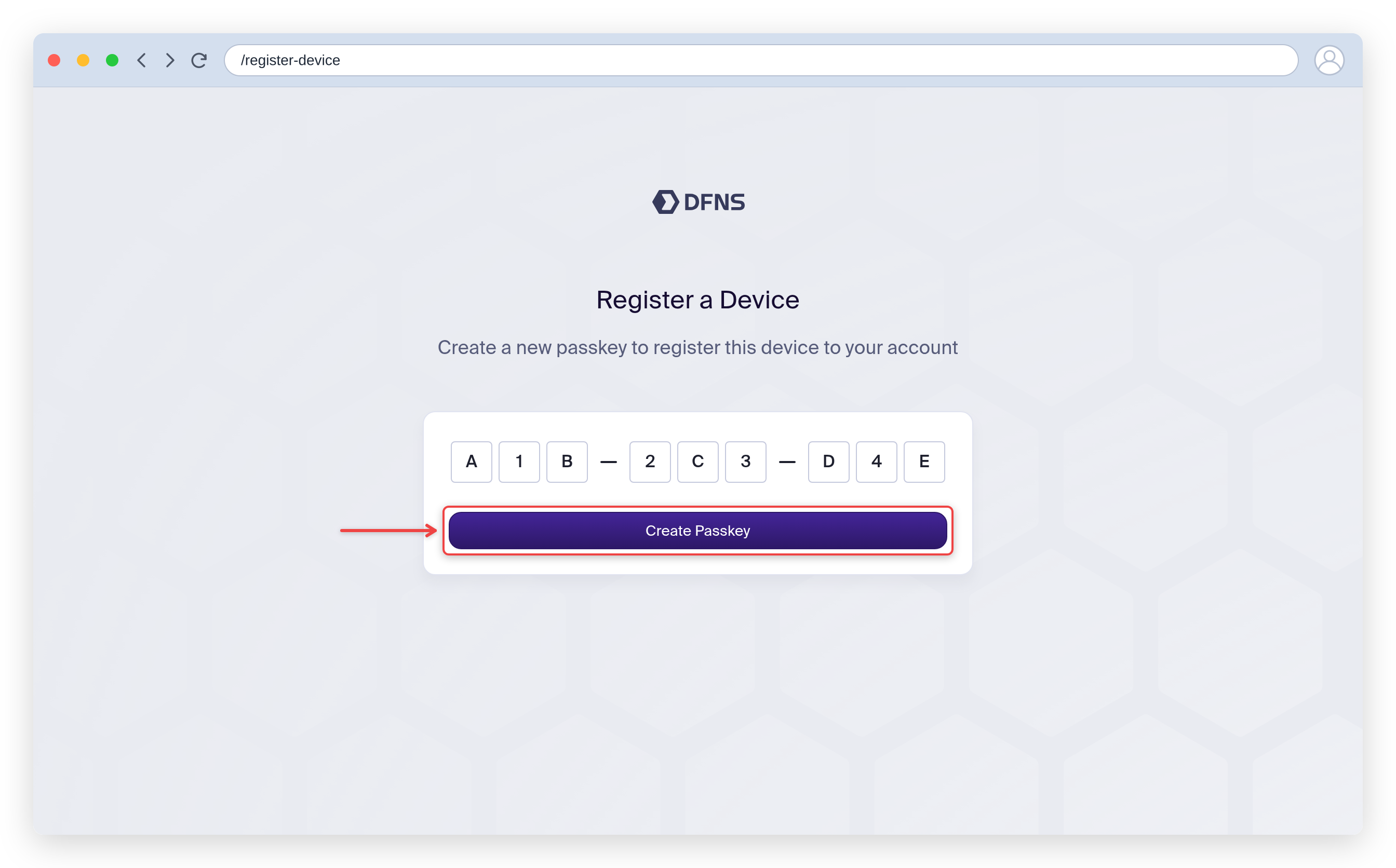
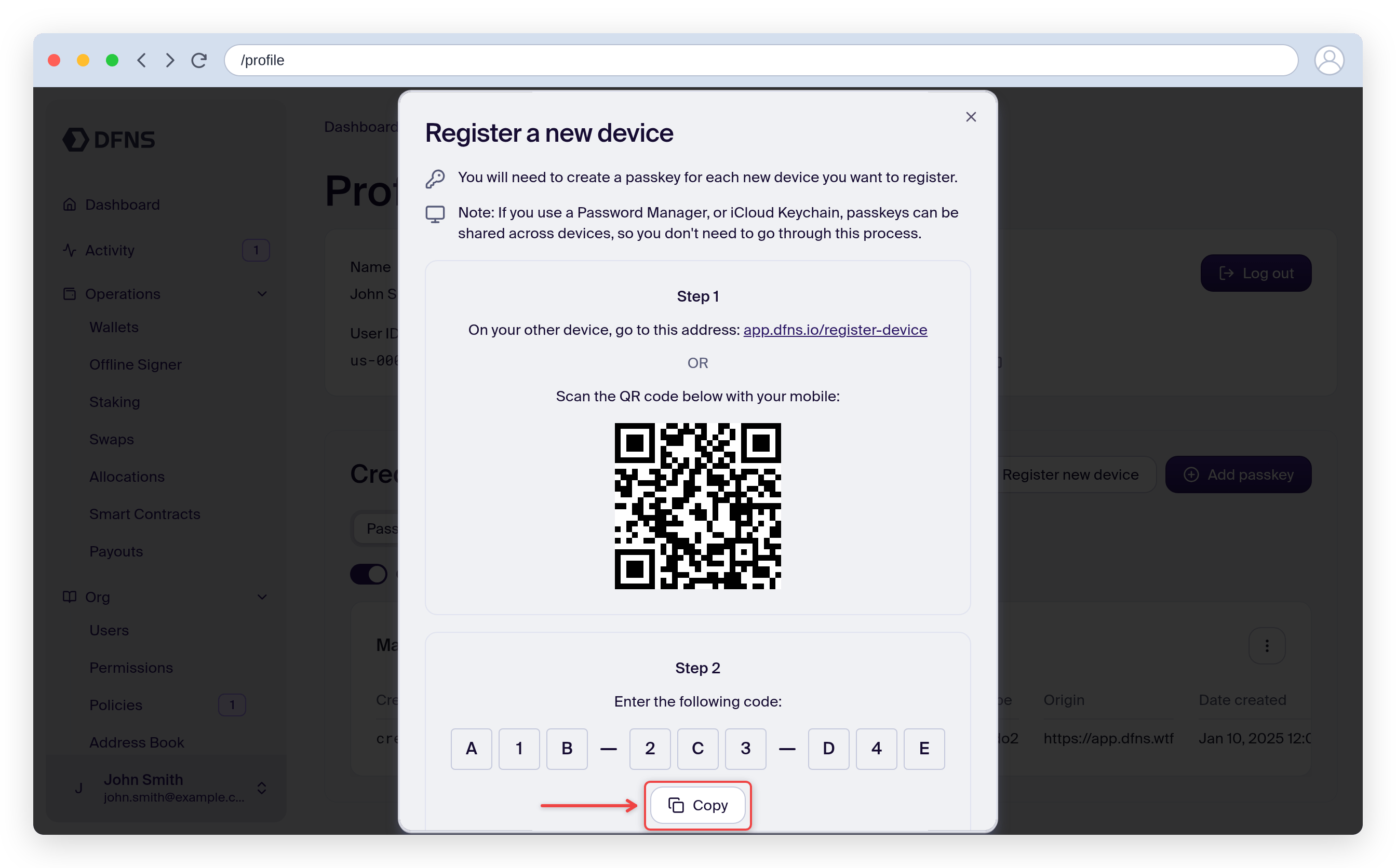 Open [app.dfns.io/register-device](https://app.dfns.io/register-device) in your browser, enter the code, and register your passkey on that device.
 ### Troubleshooting
* **"Create Credential" button is not visible:** This may be a permissions issue. Please contact your DFNS organization administrator to ensure your role has the necessary permissions.
* **The browser prompt does not appear:** Ensure you are using a supported browser and that it is updated to the latest version. Check if any browser extensions or pop-up blockers are interfering with the process.
* **Authentication Failed:** If your biometric or PIN authentication fails, simply try again. Ensure your finger is clean for fingerprint scanners or that you are entering the correct PIN for your device.
### Troubleshooting
* **"Create Credential" button is not visible:** This may be a permissions issue. Please contact your DFNS organization administrator to ensure your role has the necessary permissions.
* **The browser prompt does not appear:** Ensure you are using a supported browser and that it is updated to the latest version. Check if any browser extensions or pop-up blockers are interfering with the process.
* **Authentication Failed:** If your biometric or PIN authentication fails, simply try again. Ensure your finger is clean for fingerprint scanners or that you are entering the correct PIN for your device.