> ## Documentation Index
> Fetch the complete documentation index at: https://docs.dfns.co/llms.txt
> Use this file to discover all available pages before exploring further.
# Process payouts
> Set up Borderless and initiate stablecoin-to-fiat payouts from the DFNS dashboard, including bank account verification and recipient management.
This guide walks through connecting a Borderless account and initiating payouts from the DFNS dashboard.
The dashboard currently supports USDC payouts only. For USDT and EURC, or for programmatic access, use the [API](/guides/developers/payouts).
## Prerequisites
* A [Borderless](https://www.borderless.xyz) account with completed KYB verification
* Your Borderless API credentials (a Client ID and Client Secret)
* A DFNS wallet holding USDC on a [supported network](/features/payouts)
## Connect Borderless
In the dashboard, go to [**Integrations**](/integrations), find the **Borderless** card, and click **Configure**.
Toggle **Activate Borderless Integration**, paste your Borderless **Client ID** and **Client Secret**, and click **Save**.
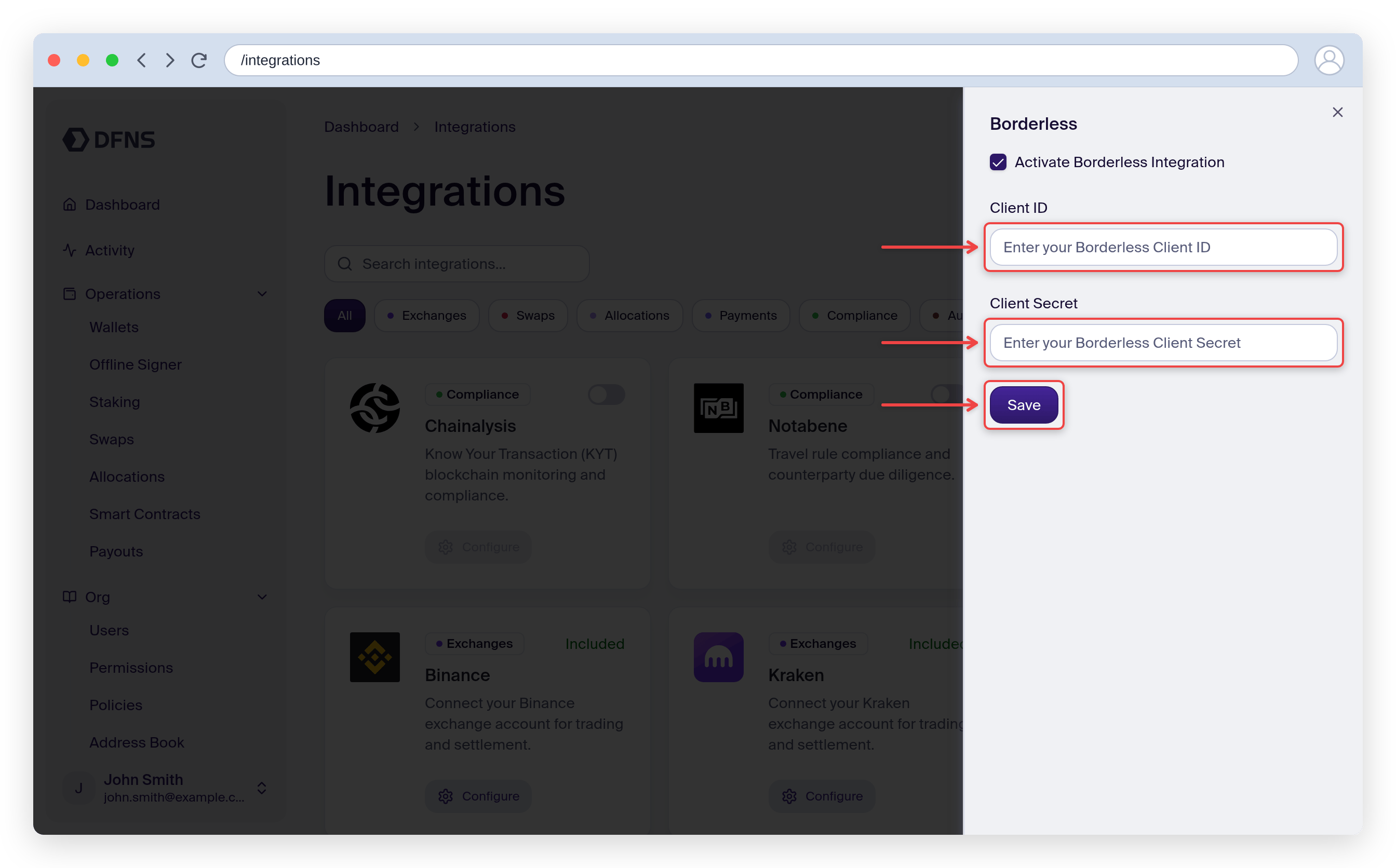 Once activated, the "Pay Out" option appears on supported wallet assets.
## Initiate a payout
Navigate to a wallet, select a USDC asset, and click **Pay Out**.
Once activated, the "Pay Out" option appears on supported wallet assets.
## Initiate a payout
Navigate to a wallet, select a USDC asset, and click **Pay Out**.
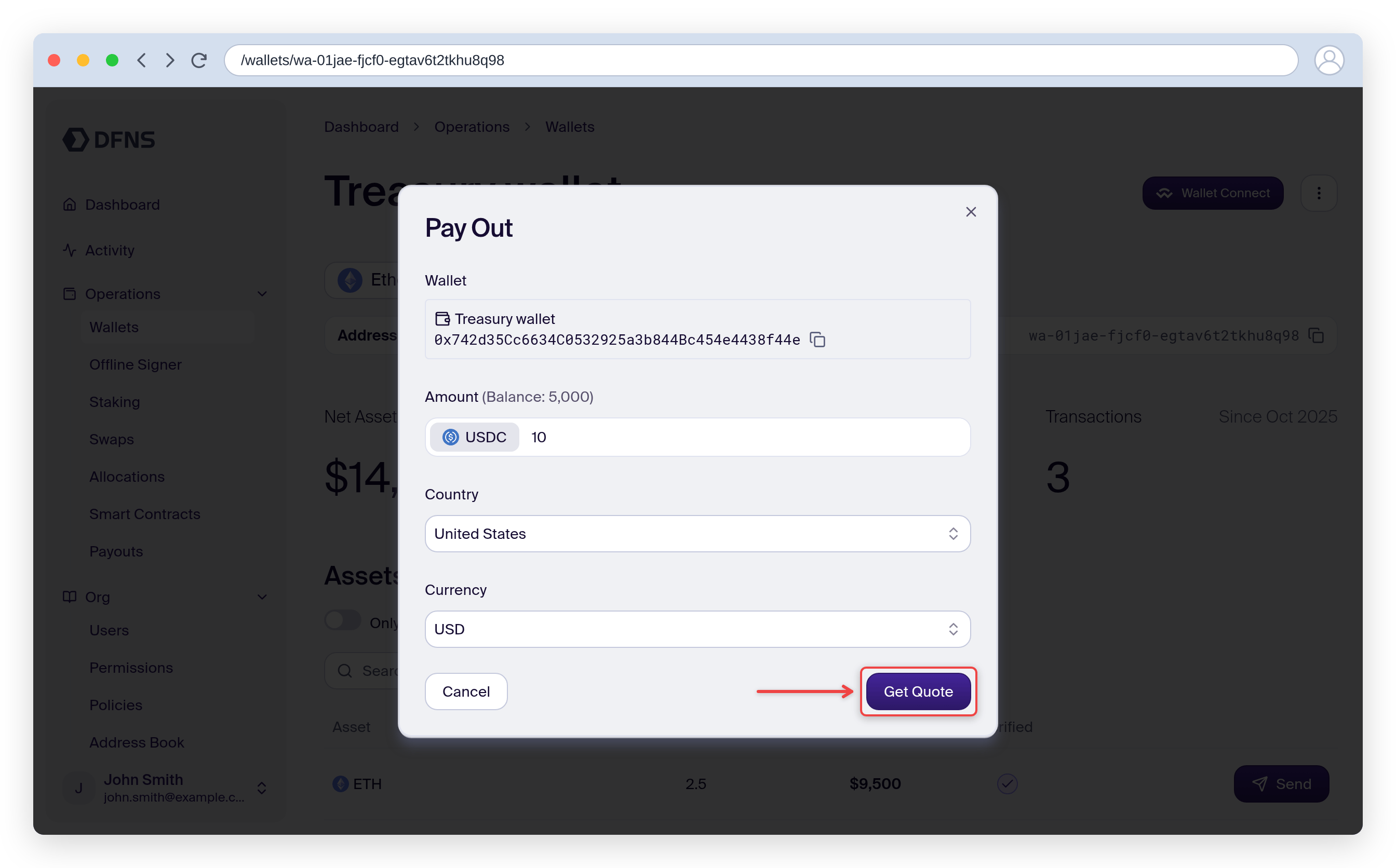
 Enter the amount to pay out and select the destination country.
Click **Get Quote**. The dashboard displays the estimated fiat amount and fees from Borderless.
Enter the amount to pay out and select the destination country.
Click **Get Quote**. The dashboard displays the estimated fiat amount and fees from Borderless.
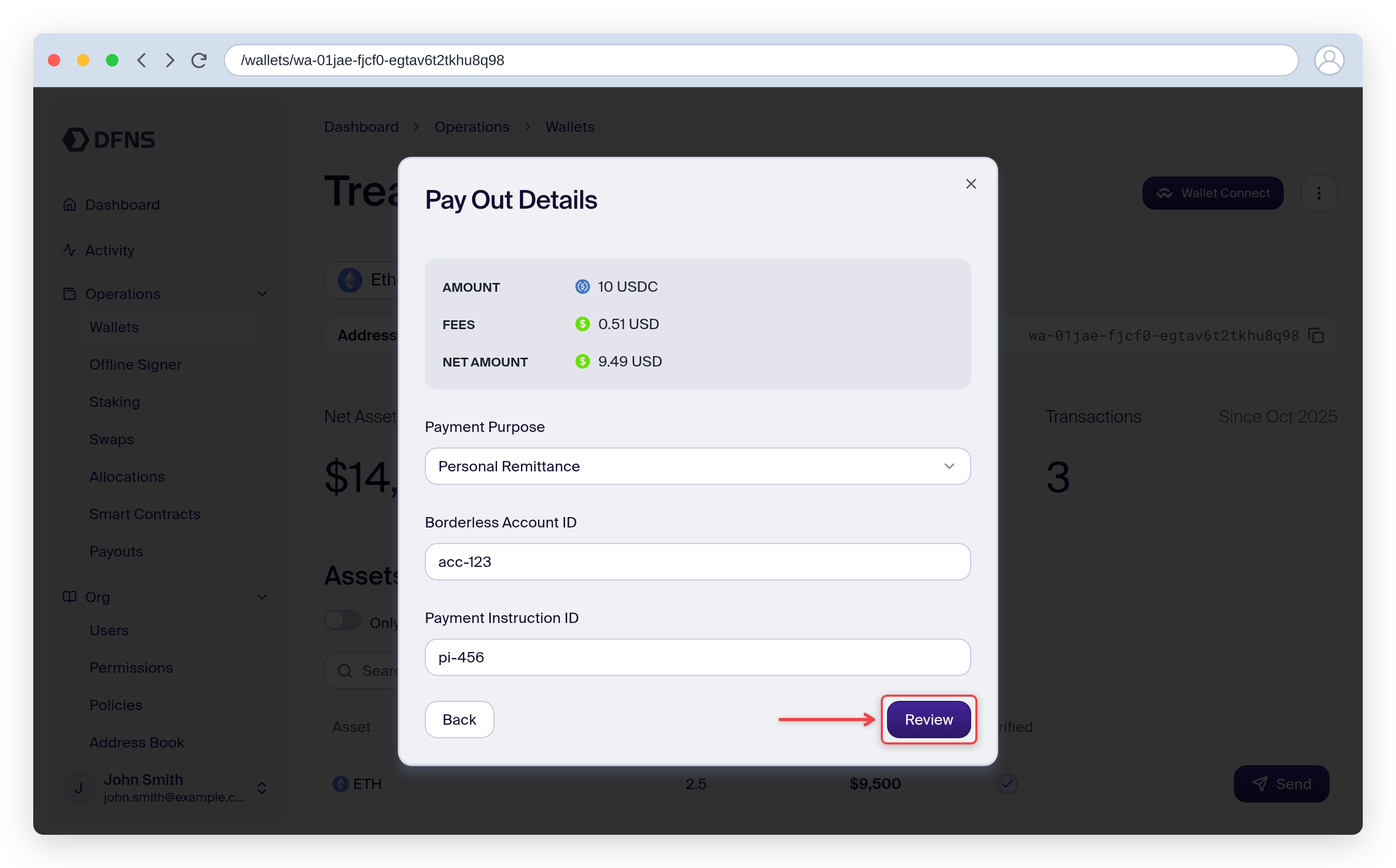
 Provide:
* **Payment purpose**: the reason for the payment (e.g. salary payment, service charge)
* **Borderless account**: the account paying out funds
* **Payment instructions**: the bank account receiving fiat
Provide:
* **Payment purpose**: the reason for the payment (e.g. salary payment, service charge)
* **Borderless account**: the account paying out funds
* **Payment instructions**: the bank account receiving fiat
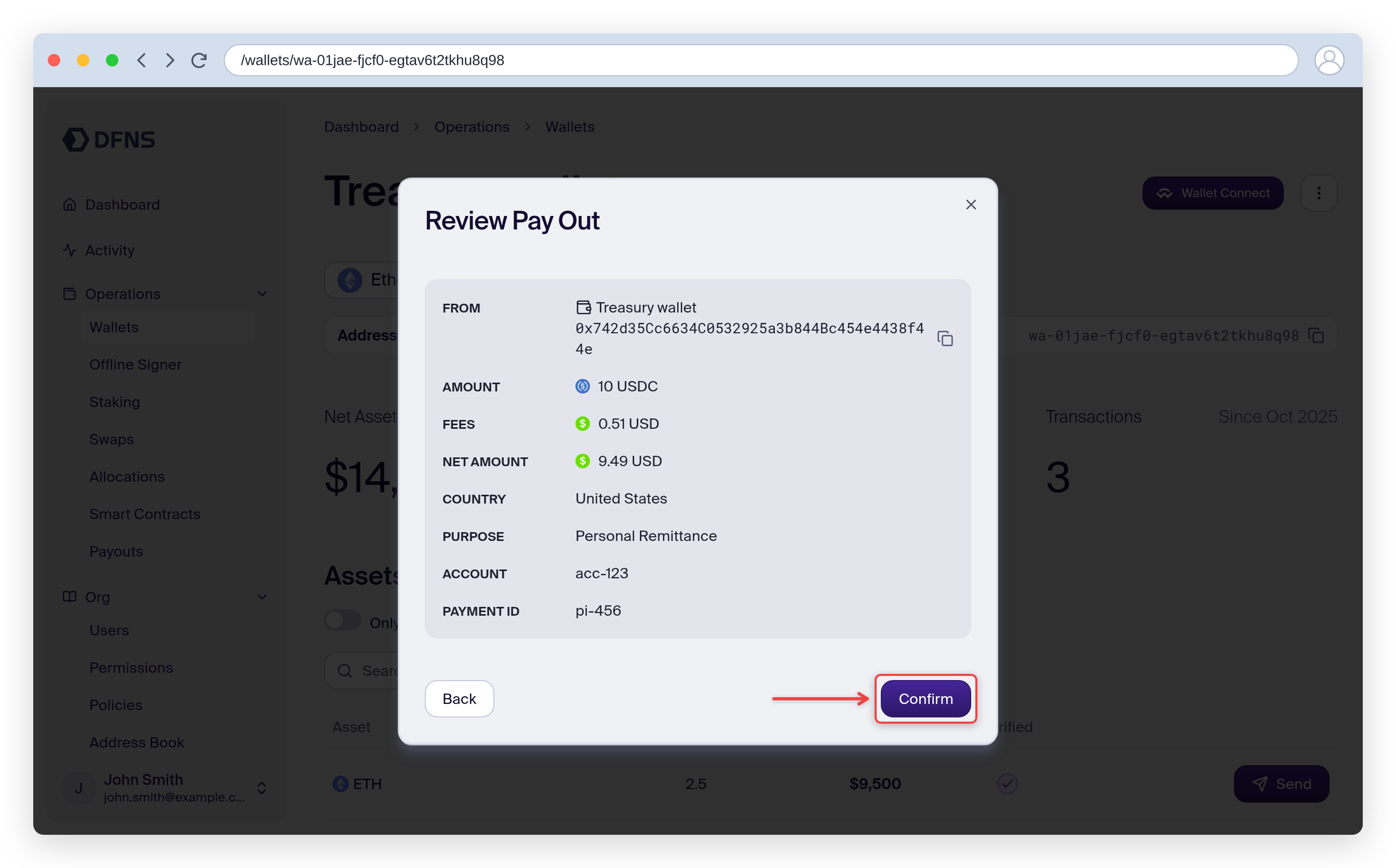
 Review the payout summary, then click **Confirm**.
 Once Borderless returns a deposit address, the dashboard prompts you to confirm the on-chain transfer. Click **Confirm Transfer** to approve.
 ## Track status
After confirmation, the payout progresses through the settlement process. See [payout statuses](/guides/developers/payouts#check-payout-status) for what each status means.
The payout moves to **Completed** when Borderless confirms fiat has been disbursed to the destination bank account.
## Track status
After confirmation, the payout progresses through the settlement process. See [payout statuses](/guides/developers/payouts#check-payout-status) for what each status means.
The payout moves to **Completed** when Borderless confirms fiat has been disbursed to the destination bank account.