> ## Documentation Index
> Fetch the complete documentation index at: https://docs.dfns.co/llms.txt
> Use this file to discover all available pages before exploring further.

# Use the address book

> Manage blockchain addresses your team interacts with by assigning human-readable names, tags, and policy whitelists in the DFNS dashboard.

export const Youtube = props => {
  return <iframe className="w-full aspect-video rounded-xl" src={`https://www.youtube.com/embed/${props.videoId}`} title="YouTube video player" frameBorder="0" allow="accelerometer; autoplay; clipboard-write; encrypted-media; gyroscope; picture-in-picture" allowFullScreen>
      </iframe>;
};

<Youtube videoId="OSvFEwd1fG4" />

## Create an alias

<Steps>
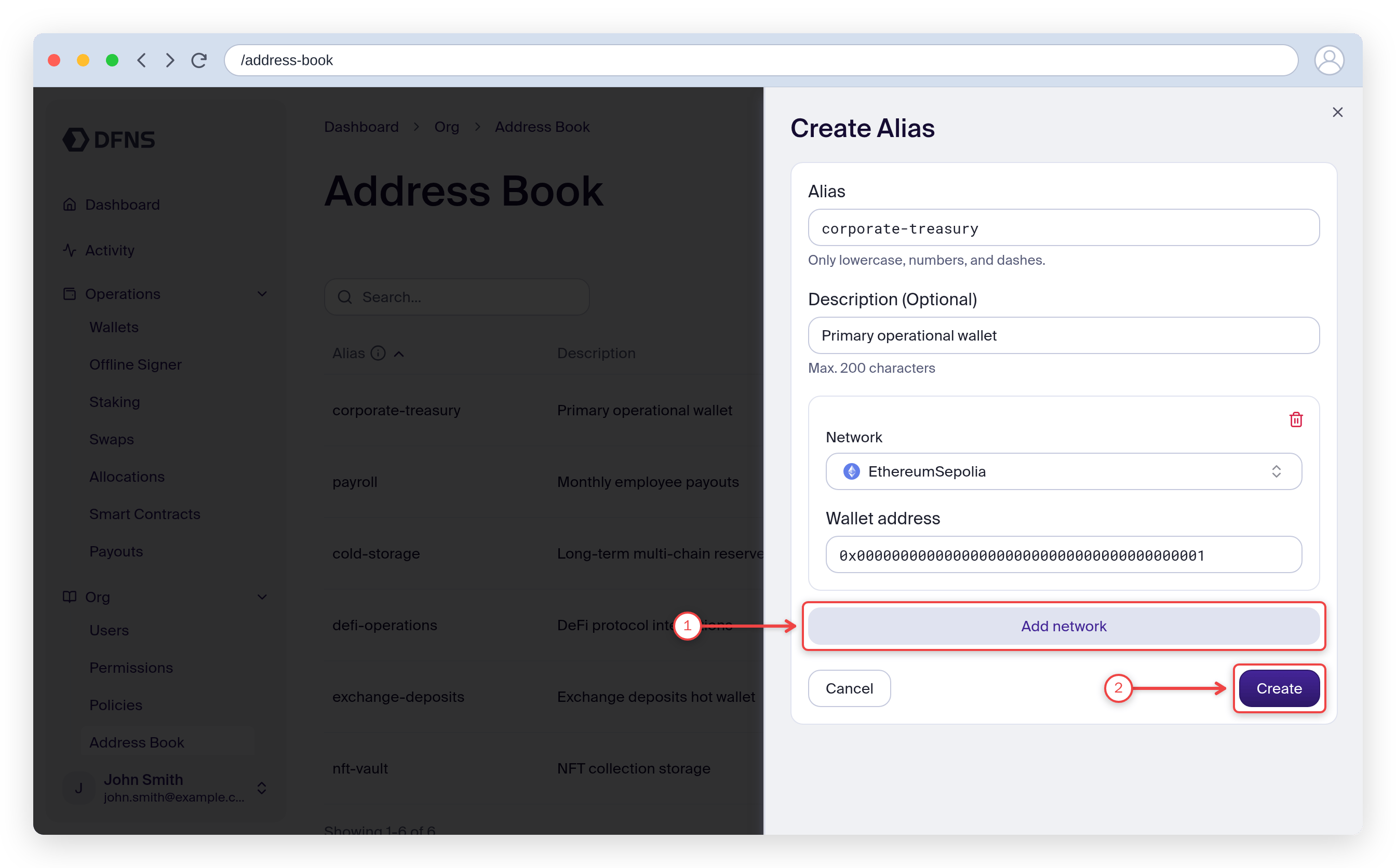
  <Step title="Go to the Address Book page and click 'Create Alias'">
    Navigate to the **Address Book** section in your dashboard (1) and click **Create Alias** (2).

    <Frame>
      <img src="https://mintcdn.com/dfns-6d8c7466/Q7SYWJ4UghIDD6rh/images/auto/using-address-book-1.png?fit=max&auto=format&n=Q7SYWJ4UghIDD6rh&q=85&s=78fdea1f991ce9ebc7cd65de46151ff7" alt="Address Book page with the sidebar entry and the Create Alias button highlighted" width="2688" height="1672" data-path="images/auto/using-address-book-1.png" />
    </Frame>
  </Step>

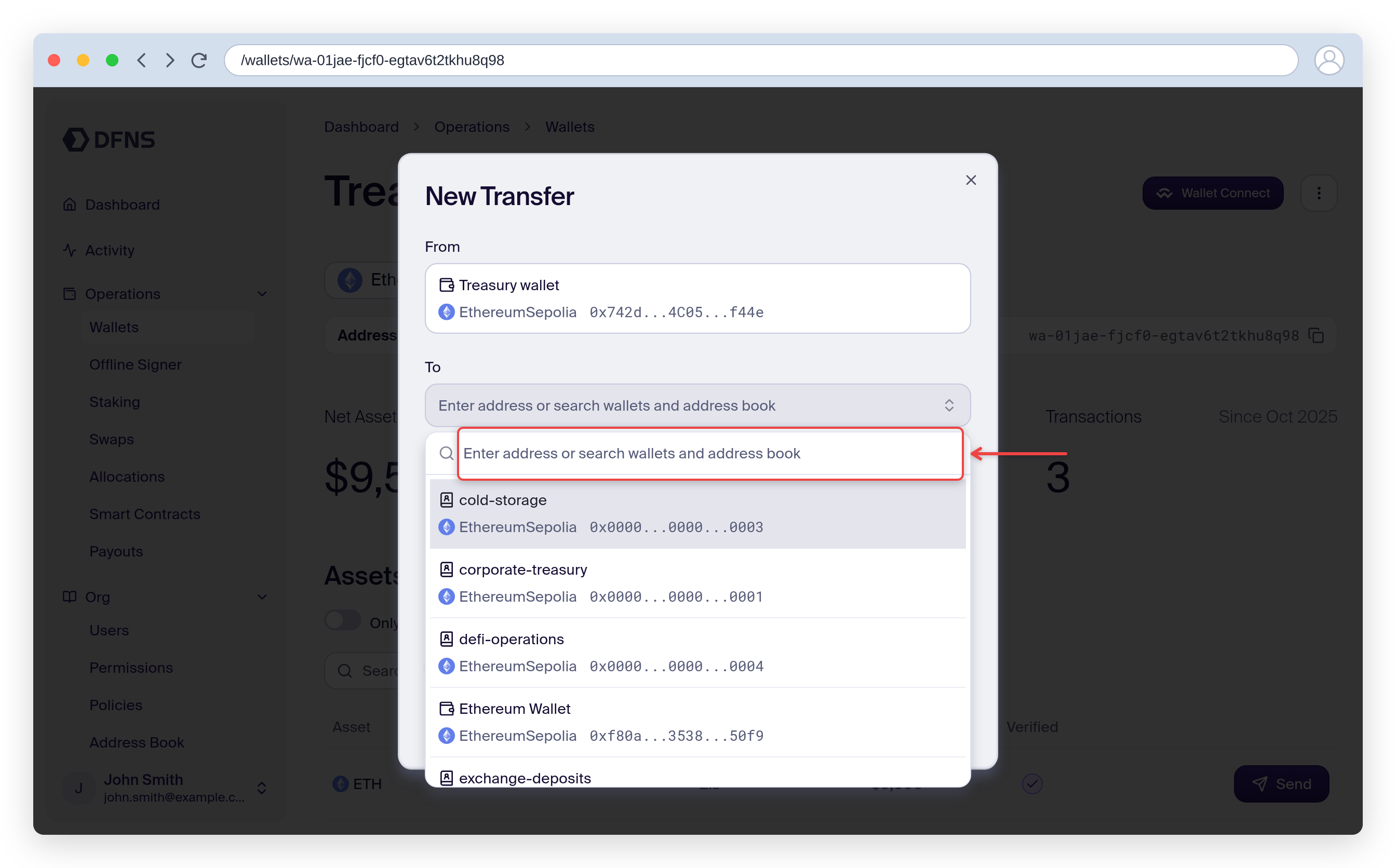
  <Step title="Fill in the form and create the alias">
    The creation form opens. Add a name, an optional description, and a network + address. You can attach multiple networks and addresses to one alias with **Add network** (1). When you're done, click **Create** (2) and 🔑 sign the action with your passkey.

    <Frame>
      <img src="https://mintcdn.com/dfns-6d8c7466/Q7SYWJ4UghIDD6rh/images/auto/using-address-book-2.png?fit=max&auto=format&n=Q7SYWJ4UghIDD6rh&q=85&s=47052057c3c7eedc592a604c5e86ba27" alt="Create alias form with the Add network and Create buttons highlighted" width="2688" height="1672" data-path="images/auto/using-address-book-2.png" />
    </Frame>
  </Step>

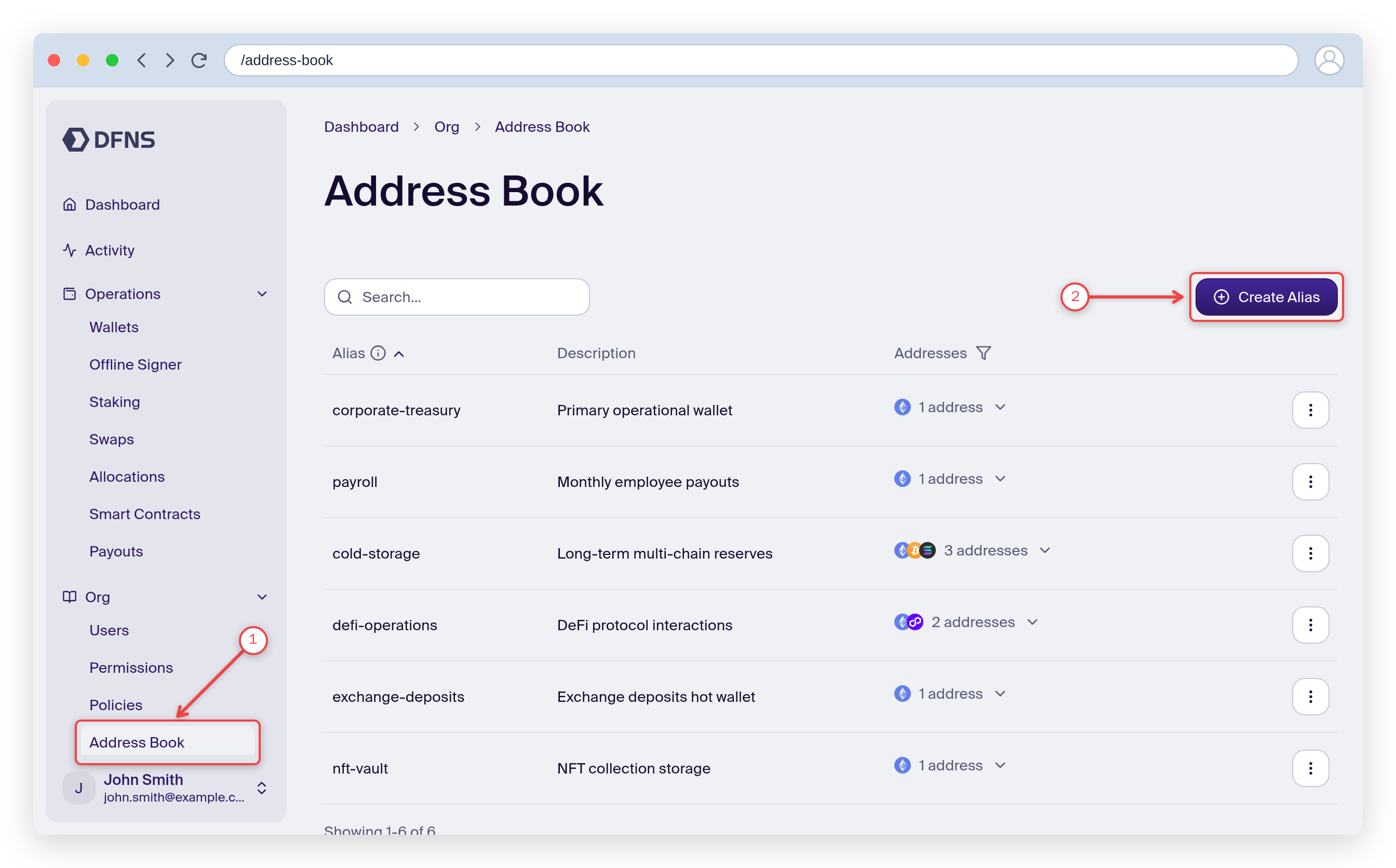
  <Step title="Use the alias in a transfer">
    Your new entry now appears in the Address Book. When you send funds, open the **To** field in the transfer modal and search the address book to pick a saved alias instead of pasting a raw address.

    <Frame>
      <img src="https://mintcdn.com/dfns-6d8c7466/Q7SYWJ4UghIDD6rh/images/auto/using-address-book-3.png?fit=max&auto=format&n=Q7SYWJ4UghIDD6rh&q=85&s=45451183dbf1118b4b828cece1ded5d9" alt="Transfer modal with the address book search open, listing saved aliases" width="2688" height="1672" data-path="images/auto/using-address-book-3.png" />
    </Frame>
  </Step>
</Steps>

<Check>
  The alias is created. Use it to send funds to a human-readable address.
</Check>